Build SQL Visually: A Tour of the HeliosDB Cloud Query Builder
The HeliosDB Cloud console has a visual Query Builder: pick a table, tick the columns you want, add filters, choose a sort order and a limit, and the console writes the SQL for you. You see the statement before it runs, copy it into your own code, or run it on the spot. This walkthrough goes from a new account to a filtered, sorted result in about five minutes, with every step taken on the live service.
Who it is for: developers who want to explore a schema without typing information_schema queries, people learning SQL who want to see the statement each choice produces, and anyone who needs a quick, correct SELECT to paste into an app.
1. Create an account
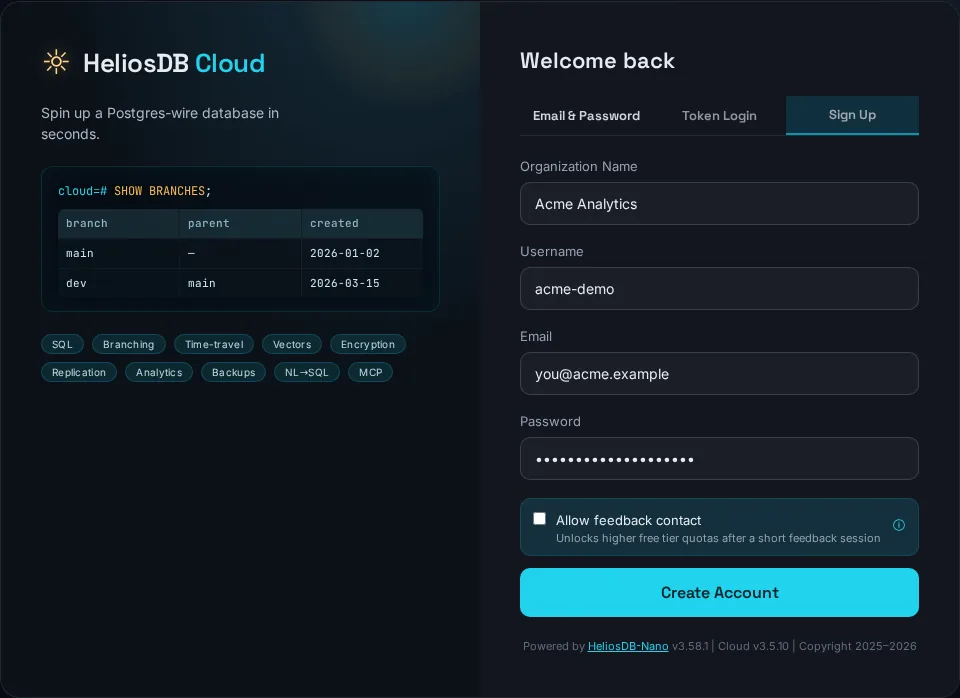
Open cloud.heliosdb.com and choose Sign Up. Enter an organization name, a username, your email and a password (at least 8 characters). You are signed in straight away, on the free plan.
Organization owners protect their account with two-factor authentication. The next time you sign in with Email & Password, the console shows a QR code: scan it with an authenticator app (Google Authenticator, Authy, 1Password and similar), enter the 6-digit code, and save the ten backup codes it shows once. From then on, each sign-in asks for your password and a code from the app; a backup code works in place of the app code if your phone is not at hand.
The free plan starts with 1 database, 100 MB of storage and 10,000 API requests per month. Click the link in the verification email and it grows to 3 databases, 500 MB and 50,000 requests per month. The dashboard shows how much of each you have used.
2. Create a database
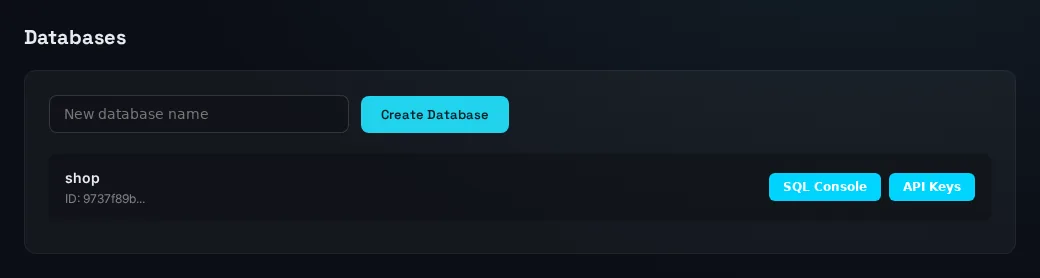
Open Databases in the sidebar, type a name (this guide uses shop) and click Create Database. Each database in the list has two buttons: SQL Console and API Keys.
3. Create a table and add sample rows
Click SQL Console next to shop and run these statements one at a time:
CREATE TABLE orders (
  id         INTEGER PRIMARY KEY,
  customer   TEXT NOT NULL,
  country    TEXT,
  status     TEXT,
  total      NUMERIC(10,2),
  ordered_on DATE
);

INSERT INTO orders VALUES
  (1, 'Ada Lovelace',  'UK', 'shipped',   249.00, '2026-09-02'),
  (2, 'Grace Hopper',  'US', 'pending',    89.50, '2026-09-05'),
  (3, 'Liam O''Brien', 'IE', 'shipped',   412.75, '2026-09-08'),
  (4, 'Sofia Rossi',   'IT', 'shipped',    64.20, '2026-09-11'),
  (5, 'Kenji Sato',    'JP', 'cancelled', 150.00, '2026-09-14'),
  (6, 'Amara Okafor',  'NG', 'shipped',   318.40, '2026-09-19'),
  (7, 'Lucas Martin',  'FR', 'pending',   205.10, '2026-09-23'),
  (8, 'Elena García',  'ES', 'shipped',   132.99, '2026-09-28');

SELECT count(*) FROM orders;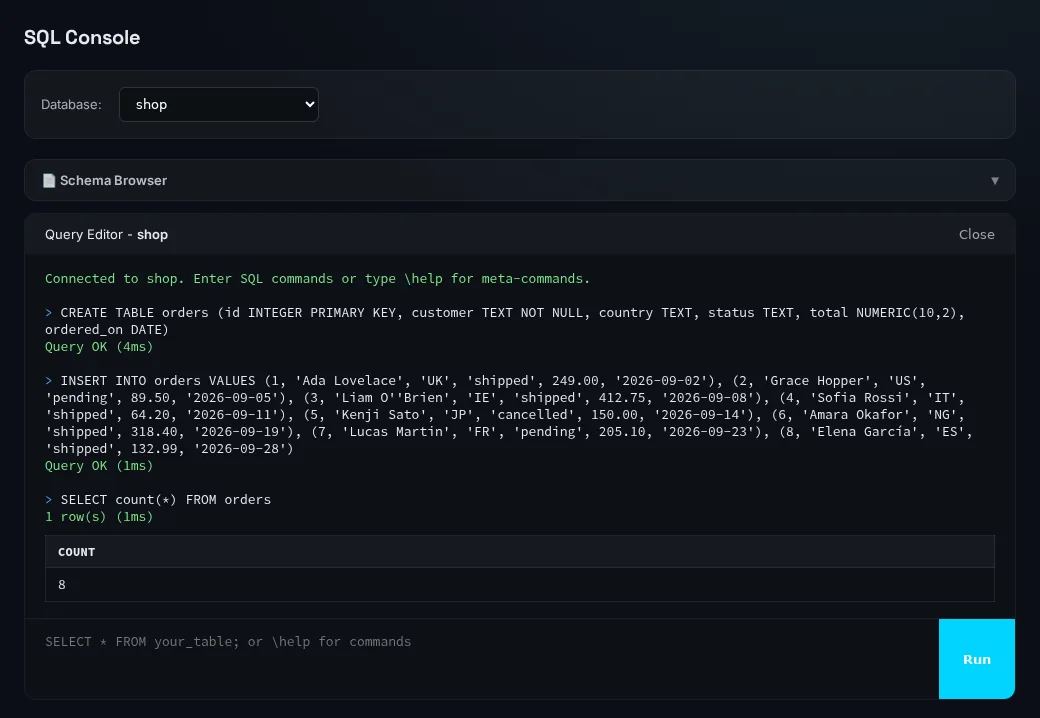
4. Build a query
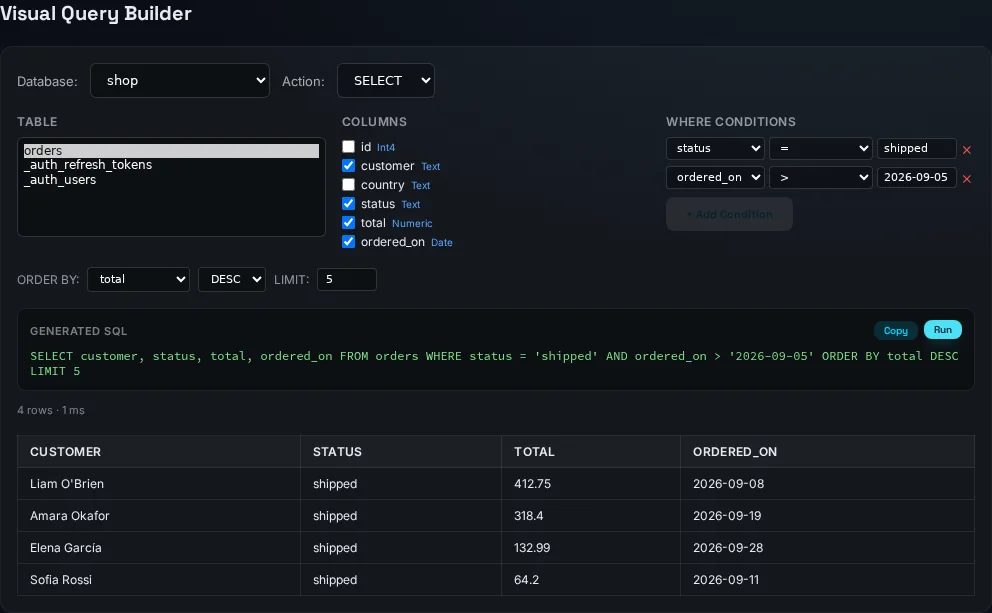
Open Query Builder in the sidebar. Choose shop in the Database menu and leave Action on SELECT. The builder reads the schema and fills in three panels:
- Table — every table in the database. Your own tables come first; internal tables whose names start with an underscore (such as
_auth_users) are listed after them. - Columns — one checkbox per column, with its type. All boxes ticked means
SELECT *; untick the ones you don't need. - WHERE Conditions — + Add Condition adds a row with a column, an operator (
=,!=,>,<,LIKE,IS NULL,IS NOT NULL) and a value. Several conditions are joined withAND; the × removes one.
Below them, ORDER BY takes a column and ASC or DESC, and LIMIT caps the row count (100 by default; 0 means no limit).
For "the five largest shipped orders placed after September 5": select orders, untick id and country, add status = shipped and ordered_on > 2026-09-05, order by total DESC, and set the limit to 5. The Generated SQL panel updates on every change:
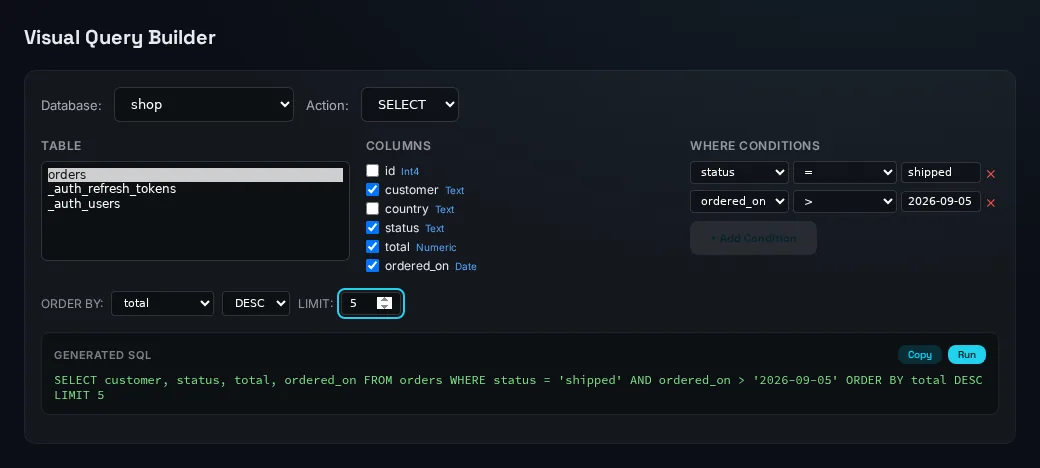
SELECT customer, status, total, ordered_on FROM orders
WHERE status = 'shipped' AND ordered_on > '2026-09-05'
ORDER BY total DESC LIMIT 5
5. Run it and read the results
Click Run. The result table appears under the SQL, with the row count and execution time above it. Copy puts the statement on your clipboard for use in your application or the SQL Console.
INSERT, UPDATE and DELETE
The Action menu also builds write statements, and they work as templates:
INSERTproducesINSERT INTO orders (...) VALUES ('', ...)for the ticked columns. Copy it into the SQL Console and fill in the values.UPDATEproducesSET column = ''for the ticked columns, plus your WHERE conditions.DELETEproducesDELETE FROM ordersplus your WHERE conditions.
Before any write runs, the console shows the exact statement and asks you to confirm. Check that a DELETE or UPDATE has the conditions you expect: without any, it applies to every row.
Tips
- Quoting is handled. Values become SQL string literals with quotes doubled: type
O'Brienand the SQL reads'O''Brien'. Plain lower-case names stay bare; names with capitals, spaces or reserved words (a column calledorder, a table calledOrder Items) are double-quoted for you. - LIKE takes the usual wildcards:
%son,A%,%ship%. - Empty values are skipped. A condition with no value does not appear in the SQL, so you can add rows first and fill them in later.
IS NULLandIS NOT NULLneed no value. - Decimal columns: the builder quotes every value, which suits text, dates and integers. To compare a
NUMERICcolumn, copy the SQL into the SQL Console and write the number without quotes (total > 100). - Conditions follow the table. Switching tables clears the conditions, since they name the previous table's columns.
Next steps: use the query from code
API keys. On the Databases page, click API Keys next to your database and generate a key. It starts with hdb_, is shown once, and works only for that database.
REST with parameters. The /query endpoint binds positional parameters, so the values never need to be spliced into the SQL string. Requests are addressed by your organization ID and database ID: right after you generate a key, the console shows a ready-to-run curl command whose URL already contains both (/organizations/<org-id>/databases/<db-id>/execute). Copy the two IDs from there into ORG_ID and DB_ID:
curl -X POST "https://cloud.heliosdb.com/api/v1/organizations/$ORG_ID/databases/$DB_ID/query"   -H "X-API-Key: $HDB_API_KEY" -H "Content-Type: application/json"   -d '{"sql": "SELECT customer, total FROM orders WHERE status = $1 ORDER BY total DESC LIMIT $2",
       "params": ["shipped", 3]}'
MCP for AI agents. The same key connects an agent to the Cloud MCP server, which exposes 27 tools including execute_sql, list_databases and query_at. The key is required:
claude mcp add --transport http heliosdb https://cloud.heliosdb.com/api/v1/mcp --header "Authorization: Bearer $HDB_API_KEY"Endpoints, scopes and the full tool list are in the BaaS guide.
Try it on the free plan at cloud.heliosdb.com.